
How to Create Ecommerce Ad Images With AI Avatars
· Product Studio · 3 min read · Reels Farm Team · Updated
Create ecommerce avatar ad images from a product brief, clear references, believable scenes, and a separate product-accuracy review.
To create ecommerce ad images with AI avatars, define the product message first. Then choose a suitable character, supply a clear product reference, and review the result for both visual quality and product accuracy.
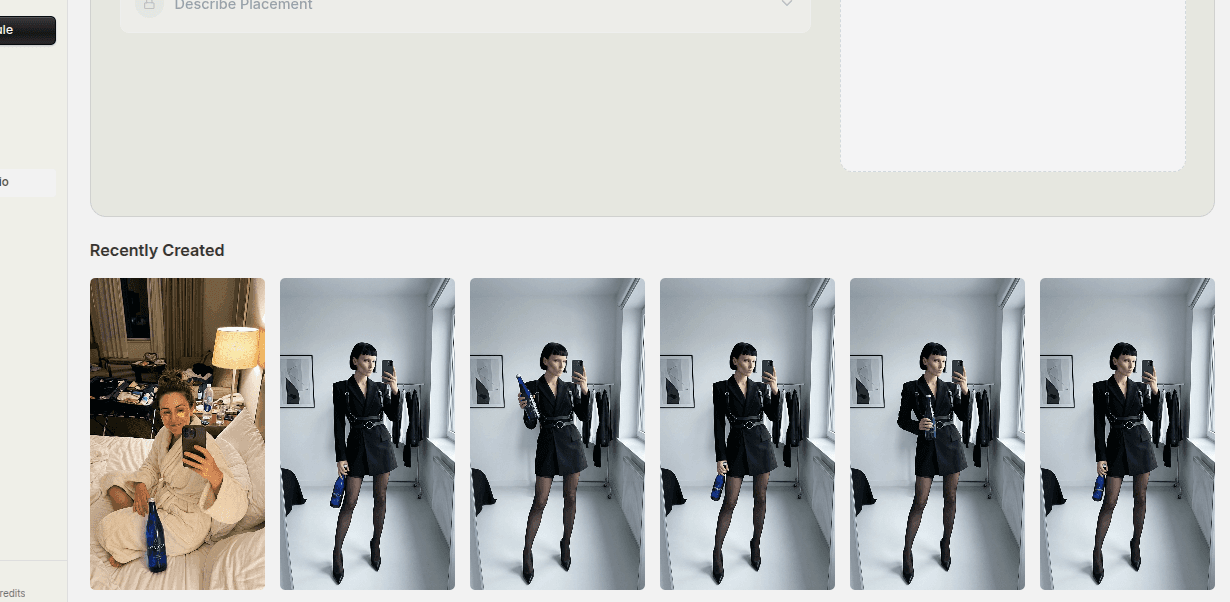
This workflow creates illustrative ad imagery. It does not supply a real customer testimonial or prove how a product performs. Start with one product and one campaign objective.
1. Write the Product Job in One Sentence
Decide what the image should show. For example: a reusable bottle that fits beside a laptop during the workday.
List the fixed details: bottle shape, cap color, label, and approximate scale. Also name the scene and intended crop. A useful image brief is more specific than “make a realistic ad.”
Use only feature claims you can support. The visual should not show a use your product cannot perform.
2. Prepare the Product Reference
Choose a sharp photo with the complete product visible. Avoid glare across the label and unnecessary objects that could be confused with the product.
Keep the source file available for side-by-side review. If the label must be exact, plan to use real product photography or controlled compositing where generated detail is insufficient.
3. Choose the Avatar for the Task
Select a character whose pose leaves space for the product. A waist-up shot may show a hand-held item clearly. A wider scene may explain where the product is used.
Do not choose a character solely because the portrait looks attractive. Check whether the hands, framing, and intended action can support the brief.
4. Specify the Relationship Between Person and Product
Example brief: “Show the supplied person beside a desk with one bottle on the counter. Preserve the bottle shape, cap, label layout, and color. Keep it visible beside the laptop. Use soft window light and a vertical social composition. Leave clear space above the desk for a short headline.”
A supported Product Studio workflow can use the avatar and uploaded product reference. Confirm the available controls in the application; an image-model option elsewhere does not imply the same option exists in Product Studio.
5. Generate a Small Set With One Variable Changed
Create scene or crop variations while keeping the product and message stable. For example, compare a desk scene with a travel-bag scene only if both fit the product's actual use.
Save the brief for each output. Otherwise you cannot tell whether a visual difference came from a deliberate change or an unintended generation error.
6. Review the Product Before the Mood
Inspect the package, label, count, and scale. Then check hands, shadows, object contact, and framing.
Reject a distorted product even if the avatar and lighting look good. Add text in a controlled editing step when exact wording matters. Check the final asset at phone size.
7. Assemble a Useful Ad Set
Keep a product-only image alongside avatar-led variants. Compare them against the same campaign objective. An avatar is one presentation choice, not an automatic improvement.
For model-specific prompting, read product ad images with GPT Image 2.5. For format choices, use AI avatars vs UGC creators.
FAQ
Can an AI avatar describe personal experience with a product?
A generated presenter cannot supply genuine personal experience. Use it for a clearly presented demonstration or explanation based on verified product facts.
What should I do if the product label changes?
Reject the result or correct it with an appropriate controlled workflow. Compare against the original product reference before approving the image.
Frequently Asked Questions
Can an AI avatar describe personal experience with a product?
A generated presenter cannot supply genuine personal experience. Use it for a clearly presented demonstration or explanation based on verified product facts.
What should I do if the product label changes?
Reject the result or correct it with an appropriate controlled workflow. Compare against the original product reference before approving the image.
Sources
Related tools
If you want to turn this topic into something usable right now, start with these tools.
Content Angle Generator
Generate content angles you can turn into hooks, captions, slideshows, or scripts.
Instagram Caption Generator
Create Instagram caption drafts for stories, lessons, launch posts, and offers.
CTA Generator
Create call-to-action lines for captions, carousels, videos, and offer-led posts.
Related reading
- How to Create AI Avatars for Ads Without Hiring Models
Better AI avatar ads come from stronger role definition, better references, and saving the characters that actually fit the brand.
- How to Put Your Product in an Avatar's Hand for Better Ads
Product-in-hand creative works when the avatar fits the offer, the product asset is clean, and the placement is described precisely enough to feel believable.
- When to Use Product Studio vs Traditional Product Photography
Product Studio and traditional photography solve different problems. The better choice depends on speed, variation needs, and the type of output the campaign requires.
Related comparisons
- Best AI UGC Video Tools for Short-Form Content
A buying guide to AI UGC video tools, with ReelsFarm positioned for complete short-form content workflows.
- Best TikTok Automation Tools for Content Teams
A guide to TikTok automation tools for teams that need content creation, scheduling, publishing, and creative control.
- Best AI Slideshow Makers for TikTok
A guide to AI slideshow makers for TikTok, with ReelsFarm positioned for repeatable slideshow automation.
- Best AI UGC Tools for Ecommerce Brands
A source-checked guide to six AI UGC tools for ecommerce product content and publishing workflows.
Drive traffic to what matters on autopilot.
Create standout posts, line up your calendar, and publish consistently without juggling a dozen tools.