
How to Add Text to a TikTok Slideshow (2026)
· TikTok slideshows · 6 min read · Reels Farm Team
Tap Text on each photo, pick a font and a style, and keep the words away from the buttons. Here is every step, the safe area in pixels, and what 3,800 real slideshow hooks say about length.
To add text to a TikTok slideshow, select your photos and tap Next. Swipe to the photo you want, tap Text, and type. Pick a font, a colour and a style, then drag the text into place. Text belongs to one photo, so repeat these steps for every photo that needs words.
This guide covers the steps, the text styles, where to put text so TikTok's buttons do not hide it, how long your text should be, and what to do when the text tool does not work.
How to add text to a TikTok slideshow in the app
- Start a photo post. Tap +, then Photo and Upload, and select your photos in order. The slideshow guide covers this part step by step.
- Tap Next to open the editor.
- Swipe to the first photo that needs text.
- Tap Text and type your words.
- Pick a font and a colour from the rows above the keyboard.
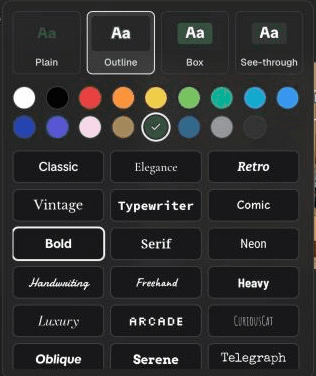
- Tap the style button to switch between plain text, text with an outline, text on a solid box and text on a see-through box.
- Tap Done, then drag the text to move it. Pinch with two fingers to make it bigger or smaller.
- Swipe to the next photo and repeat.
Photo posts also have a short title above the description, on the screen after the editor. Repeat your hook there, because some viewers read the title before they swipe.
Which text style to use
The style decides whether people can read your text on top of a busy photo.
- Plain works on calm photos with a dark or light area behind the words.
- Outline puts a dark edge around white text. It is the classic TikTok slideshow look and stays readable on most photos.
- Box puts the text on a solid colour. Use it on busy photos or when the text is long.
- See-through box keeps some of the photo visible behind the words.
TikTok's text tool has fonts such as Classic, Typewriter, Handwriting, Neon and Serif. The TikTok fonts page shows each font, and which free font looks the same if you design slides outside the app.
Where to put text so the buttons do not cover it
TikTok draws its own interface on top of your photos. The tabs cover the top of the screen. The caption, the sound and the account name cover the bottom. The like, comment, save and share buttons cover the right side.
TikTok's in-feed template for ads gives the safe area. On a 1080x1920 slide:
- keep text 240 pixels below the top edge
- keep text 660 pixels above the bottom edge
- keep text 120 pixels from the left edge
- keep the right side free: the buttons take 180 pixels from the right edge, from 840 pixels down
In practice, put your words in the upper middle of the photo. The TikTok safe zone template shows the areas on a slide, and the size guide covers photo sizes.
How much text to put on a slide
Short text gets read. In our study of 7,736 TikTok slideshows, we read the hook on the first slide of 3,823 of them:
- Hooks of 1 to 5 words had the highest median views, 4,050.
- Hooks of 11 to 15 words had the lowest, 2,900.
- Hooks with an emoji had a median of 2,450 views, against 3,500 without one.
Keep the first slide to one short line. Later slides can hold more, but one idea per slide is easier to read in the two or three seconds people give each photo. The hooks study has the full numbers, and the hook guide has examples.
Can you put the same text on every slide?
Not in one step in the TikTok app. Text belongs to one photo, so you type it on each photo. Video slideshows have options such as text timing and text-to-speech, but those apply to videos, not to swipe photo posts.
If you want the same layout or a watermark on every slide, add the text to the photos before you upload them.
Why TikTok will not let you add text
These are the usual causes:
- You are on the wrong screen. The Text button is on the editing screen. The screen with the description, the cover and the privacy settings has no text tool. Tap back.
- The app is out of date. Update TikTok from the App Store or Google Play.
- The app is stuck. Close TikTok, open it again, and start the post again. Save it to drafts first if you have already done work on it.
Can you edit text after posting?
TikTok does not describe a way to change the text on a photo after you post. Read every slide before you tap Post, or tap Drafts and finish the post later.
Add text to many slides at once
Typing text photo by photo is fine for one post. For a post every day, or for several accounts, it takes too long.
In our slideshow editor, the AI writes the text for every slide from your prompt or from a slideshow you recreate. Each text has the same choices as TikTok: the four styles, the font, the colour and the size, and you can drag it anywhere on the slide. To change many slides at once, describe the change in plain words, such as "make every slide shorter", and the AI rewrites all of them.
Slides then post to TikTok as a swipe photo post with the text already on them. From ChatGPT or Claude, the TikTok MCP server does the same from the chat.
Frequently Asked Questions
How do I add text to a TikTok slideshow?
Select your photos, tap Next, swipe to the photo you want, tap Text and type. Pick a font, a colour and a style, then drag the text into place. Repeat for each photo.
Can I put the same text on every slide?
Not in one step in the TikTok app. Text belongs to one photo, so you add it to each photo. To put text on many slides at once, make the slides with the text on them before you upload.
Why won't TikTok let me add text?
Check that you are on the editing screen, not the screen with the description, and update the TikTok app. If the Text button is still missing, close and reopen the app and start the post again.
Can I edit text on a TikTok slideshow after posting?
TikTok does not describe a way to change the text on a photo after you post. Check every slide before you post, or save the post to drafts and finish it later.
Where should text go on a TikTok slideshow?
In the middle of the screen. TikTok covers the top with tabs, the bottom with the caption and the right side with the like and share buttons. On a 1080x1920 slide, keep text 240 pixels from the top, 660 from the bottom and 120 from the sides, and away from the buttons on the right below 840 pixels.
Sources
Related tools
If you want to turn this topic into something usable right now, start with these tools.
Slideshow Outline Generator
Create carousel and slideshow outlines for educational, promotional, and story-led posts.
TikTok Hook Generator
Generate TikTok hook ideas for product demos, lessons, and founder-led content.
Instagram Caption Generator
Create Instagram caption drafts for stories, lessons, launch posts, and offers.
Related reading
- How to Make a Slideshow on TikTok (2026 Guide)
A TikTok slideshow is a photo post that viewers swipe through. This guide shows every step in the app, how to post one from a computer, how to add text and music, and how many photos to use.
- How to Change the Cover of a TikTok Slideshow
The cover is the photo people see in the feed and on your profile. This guide shows how to choose it before you post, what to do when Edit cover is missing, and which covers got the most views.
- TikTok Slideshow and Carousel Size: Dimensions for 2026
TikTok does not publish one photo size for slideshows. This guide gives the sizes that work, the sizes real slideshows use, the safe area in pixels, and the limits for apps that post for you.
- How to Write TikTok Slideshow Hooks That Get the First Swipe to Stop
The first frame does most of the heavy lifting. If the hook is weak, the rest of the slideshow rarely gets a fair chance.
Related comparisons
- Best AI Slideshow Makers for TikTok
AI slideshow makers for TikTok compared on output, text styles, posting and price.
- Best Fastlane Alternatives for Short-Form Content Automation
Fastlane alternatives compared on slideshows, UGC video, posting and price.
- Best Reel.farm Alternatives for TikTok and UGC Automation
Reel.farm alternatives compared on slideshows, platforms, video features and price.
- ReelsFarm vs Canva for TikTok Slideshows
ReelsFarm vs Canva for making and posting TikTok slideshows.
Drive traffic to what matters on autopilot.
Create standout posts, line up your calendar, and publish consistently without juggling a dozen tools.